
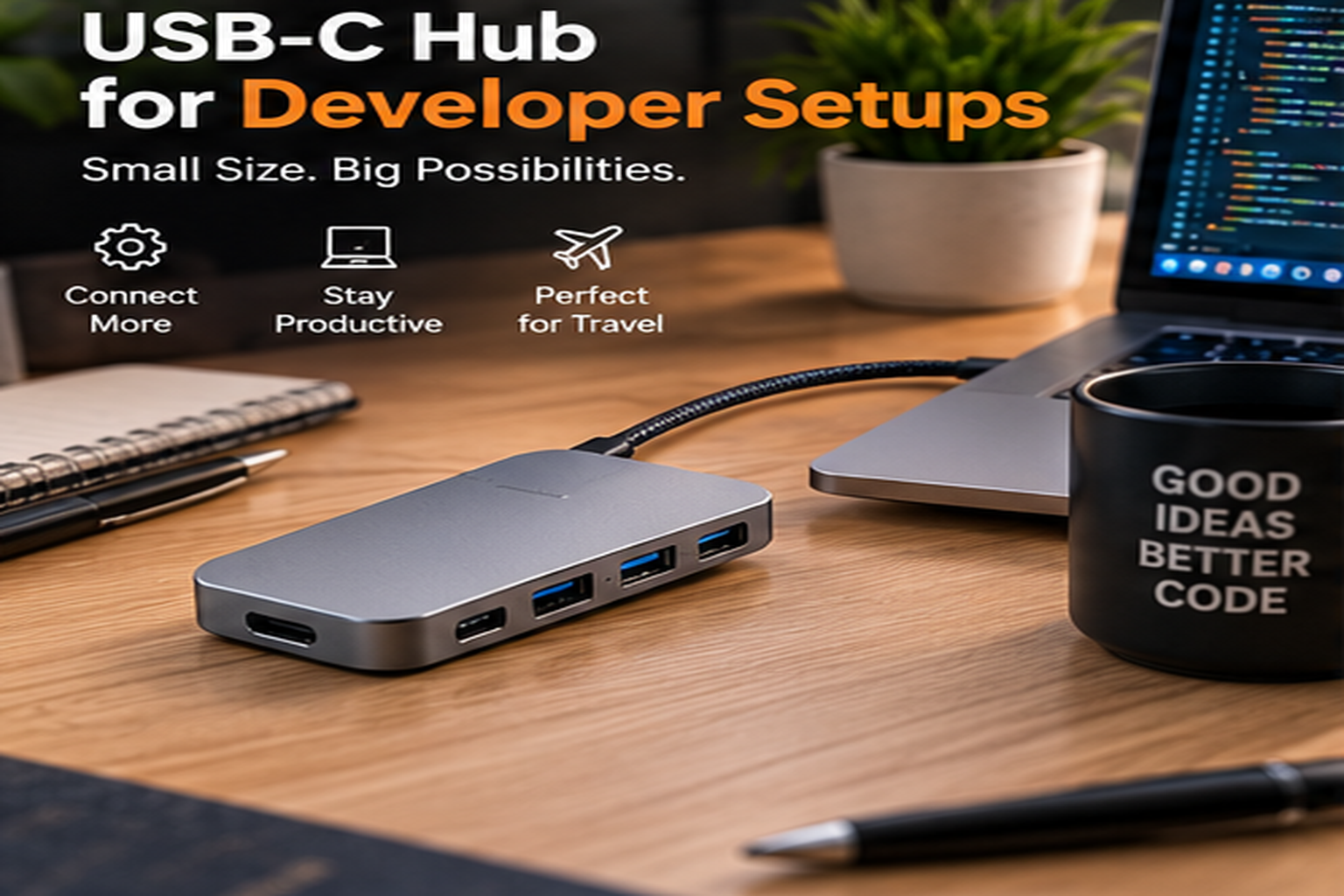
Editorial research note: This comparison draws on documented features, not first-hand measurements. Verify prices, exact model revisions, compatibility and all review claims before publication.
Quick Verdict
A USB-C hub is the sensible choice for occasional connections, travel and laptops that need a few extra ports. A powered docking station is usually better for a permanent desk with Ethernet, multiple monitors, an external SSD and charging over one cable. Neither product can override the computer’s native video limits without a separate USB graphics method such as DisplayLink. For programmers, the correct choice is the one that solves the actual display, charging and peripheral requirements at the lowest complexity.
Key Differences at a Glance
| Attribute | USB-C hub | Docking station |
|---|---|---|
| Typical design | Small, light and portable | Larger, desk-based; often separately powered |
| Connectivity | Few USB ports, HDMI, card reader | More USB, display, audio, Ethernet and storage ports |
| Laptop charging | Often pass-through; output below input | Often integrated higher power delivery |
| Multi-monitor support | Model and host dependent | More options; still host dependent |
| High-speed SSDs | Some models offer 10Gbps | USB4/Thunderbolt models may offer more bandwidth |
| Warranty | Model dependent | Model dependent |
| Cost | Often lower | Usually higher |
A premium hub can cost more than an entry-level dock. Categories describe typical usage rather than rigid technical definitions.
Design and Build
Hubs usually attach through a short cable and may hang beside the laptop. This is convenient at a shared desk or hotel but can strain a connector when several heavy cables are attached. A dock tends to sit in one place. Rear-panel connections hide permanent cabling while front ports remain available for portable storage or a headset.

Performance for Programming and Remote Work
For writing code, reading documentation and running a terminal, neither device directly accelerates your CPU. The productivity benefit is reduced setup friction: docking once to reach the preferred screens and peripherals. For compiling to an external SSD or transferring large containers and project archives, bandwidth becomes material. Shared hub controllers may reduce simultaneous speeds; Thunderbolt and USB4 can offer faster paths when supported at both ends.
Comfort and Long-Session Use
A stable monitor layout can support better posture by placing the primary screen close to eye level and leaving room for keyboard and mouse. Docks can keep heavy power and display cables off the active desk area. Hubs are easier to reposition but may create a tangle of adapters. Any hardware choice should leave space for natural wrist positioning and avoid pulling the laptop toward the desk edge.
Compatibility and Connectivity
USB-C is a plug shape, not proof of any particular function. Confirm that the host port supports video, charging and the desired data protocol. Verify the dock’s host power output, not just the charger input rating. A high-wattage laptop under sustained workload may still discharge if the dock supplies too little power.
For MacBook owners, check the chip-specific Apple external-display specifications and whether clamshell mode changes supported configurations. Avoid assuming Windows-focused MST documentation applies to macOS. Also check whether a device needs Thunderbolt rather than generic USB-C and whether any driver is required.
Value for Money
A developer with one 1080p or 1440p monitor and a keyboard may get better value from a compact hub. Buying a large dock for one HDMI port and a mouse is unnecessary. A desk with dual 4K screens, wired networking, a high-speed SSD and several peripherals can justify a more capable dock because replacing multiple adapters and power supplies adds both cost and inconvenience.
Pros and Cons
USB-C hub pros: Portable; easy to pack; economical for a few ports; fast to set up on a temporary desk.
USB-C hub cons: Less convenient for permanent cable routing; limited connections and charging; display capabilities can be unclear.
Dock pros: Better suited to permanent multi-peripheral desks; more ports; often Ethernet and integrated laptop power; easier cable organization.
Dock cons: Higher total cost; bulkier; host bandwidth and display restrictions remain; specialized features may require drivers.
Which One Should You Buy?
Choose the hub if you travel often, use a single external monitor and need a few USB connections. Choose the docking station if you regularly reconnect a complete programming workspace, need reliable wired networking or demand complex display and storage connectivity. For a MacBook Pro, establish the native display capability first; for a Windows laptop, confirm USB4/Thunderbolt and MST support before assuming triple-screen output. A well-matched, modest product is preferable to a feature-rich incompatible one.
FAQ
Is a USB-C dock always better than a hub?
No. A dock adds complexity and cost when only a few portable connections are needed.
Will any dock give my MacBook three external monitors?
No. Native limits depend on the Mac chip and model; DisplayLink may be an option with its own restrictions.
Can a USB-C hub charge my laptop?
Some can, through power-delivery pass-through. Confirm the charger input and actual wattage reaching the computer.
Do developers need Thunderbolt?
Not for routine coding. It helps when high-bandwidth storage and display combinations justify it, provided the whole setup is compatible.
Research Sources and Editorial Limitations
- CalDigit TS4: https://www.caldigit.com/thunderbolt-station-4/
- Plugable multi-display technology: https://plugable.com/products/ud-6950pdz
- Apple model-specific display specifications: https://support.apple.com/specs
- Anker product catalog: https://www.anker.com/
No original performance, temperature, charging or long-term reliability testing was performed. Product photos are conceptual artwork, not a guarantee of exact port layouts. Verify model revisions, retailer prices and compatibility before publication.


