
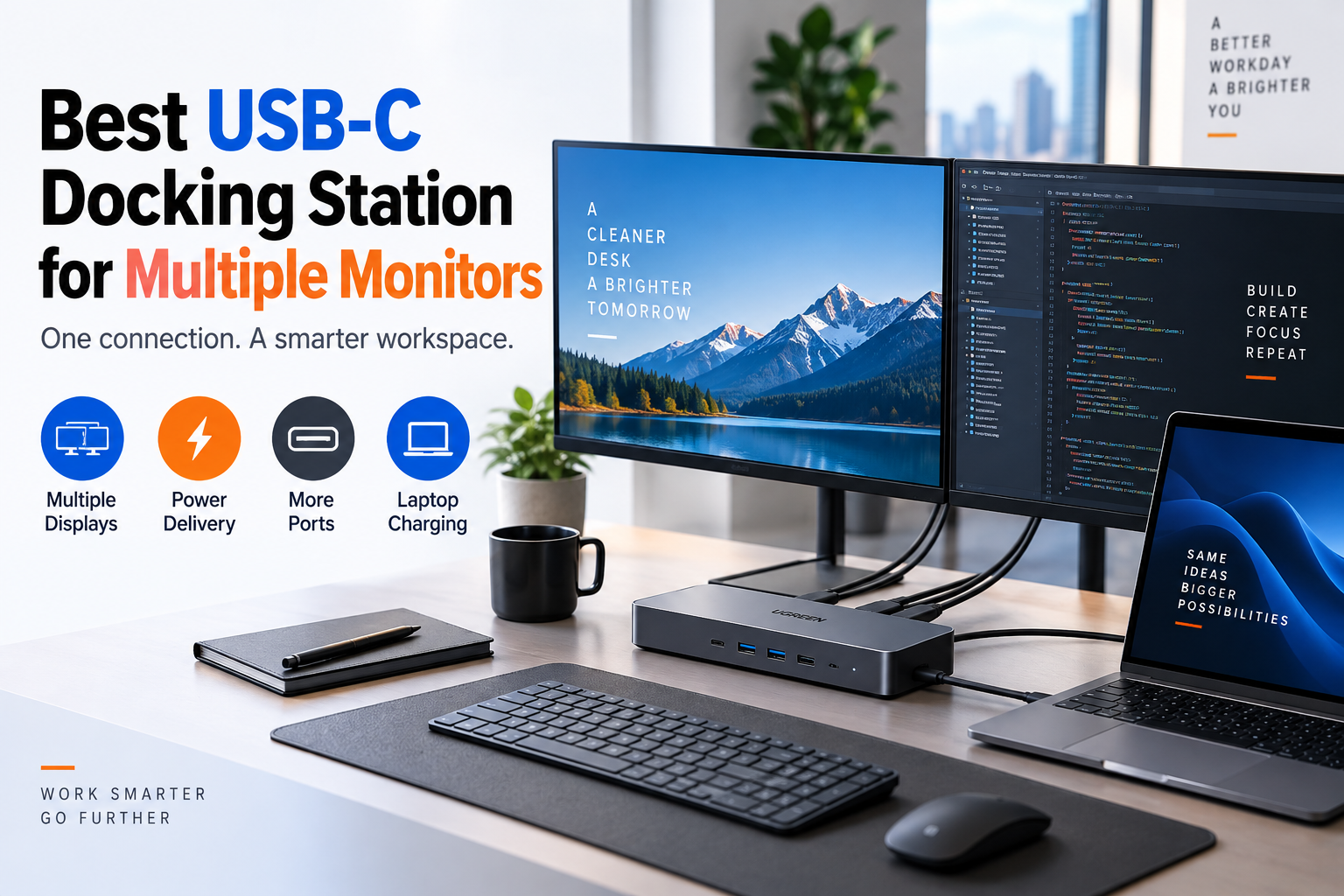
Working with multiple monitors can make programming, office work, video editing, and multitasking more convenient. Instead of constantly switching between windows on a single laptop screen, you can keep your code, browser, documents, and communication tools visible simultaneously.
However, choosing the right docking station is not as simple as counting HDMI ports. The best USB-C docking station for multiple monitors depends on your laptop’s USB-C capabilities, operating system, display requirements, and charging needs.
Some docking stations support two external 4K monitors, while others can connect three or even four displays under the right conditions. Certain models use Thunderbolt technology for native video output, while DisplayLink models use additional software to support more screens.
In this guide, we compare three docking stations worth considering for different setups, explain their advantages and disadvantages, and show you what to check before buying.
Quick recommendation: Consider the Plugable TBT4-UDZ for compatible Windows workstations that need up to four displays, the Plugable UD-6950PDZ for compatible triple-monitor office setups, and a conventional Thunderbolt 4 dock if you only need two external monitors.
Quick Comparison: Best USB-C Docking Stations
| Docking station | Best for | Display capability | Main advantage |
|---|---|---|---|
| Plugable TBT4-UDZ | Multi-monitor Windows workstations | Up to four 4K displays on supported Windows systems | Extensive connectivity |
| Plugable UD-6950PDZ | Triple-monitor productivity | Up to three external displays, with compatible host video support | Combines native video and DisplayLink |
| Plugable TBT4-UD5 | A simpler dual-monitor desk | Up to two displays | Straightforward Thunderbolt 4 connectivity |
Display capabilities depend on the exact laptop, operating system, connection type, graphics hardware, and display configuration. The specifications above are not a guarantee that every laptop can use every output simultaneously.
1. Plugable TBT4-UDZ — Best for Multiple Monitors
The Plugable TBT4-UDZ is a Thunderbolt 4 docking station designed for users who need several displays and a broad selection of connections.
It is particularly worth considering for a Windows workstation with compatible Thunderbolt 4 or USB4 hardware. On supported Windows systems with the necessary DisplayPort bandwidth and graphics capabilities, the dock can support up to four 4K displays at 60Hz.
The dock provides HDMI and DisplayPort outputs alongside USB connectivity, Ethernet, audio, and memory-card readers. It can also supply up to 100W of host charging under supported conditions.
Key features
- Thunderbolt 4 connectivity
- Four video connectors: two HDMI and two DisplayPort
- Up to four 4K displays at 60Hz on qualifying Windows systems
- USB ports for peripherals
- Ethernet and audio connectivity
- Up to 100W host charging, subject to compatibility
Pros
- Suitable for complex multi-monitor workstation setups.
- Offers HDMI and DisplayPort options.
- Combines display connections and everyday peripherals in one dock.
- Can reduce cable clutter on a permanent desk.
Cons
- More expensive than a basic USB-C hub.
- Four-display operation requires compatible hardware and graphics support.
- Mac display support differs from Windows support.
- It does not use DisplayLink to bypass the native display limits of a base M1 or M2 Mac.
Best for: Developers, analysts, office professionals, and other users who need several independent displays on a compatible Windows computer.
Manufacturer specifications: Plugable TBT4-UDZ display compatibility guide
Check price: View the Plugable TBT4-UDZ on Amazon
2. Plugable UD-6950PDZ — Best for Triple-Monitor Productivity
The Plugable UD-6950PDZ is worth considering if you want three external displays for everyday productivity, office applications, and multitasking.
Unlike a conventional native-video docking station, this model combines two display technologies. One display uses the laptop’s native USB-C DisplayPort Alternate Mode connection, while the other two use DisplayLink USB graphics.
The DisplayLink outputs can support individual 4K displays at up to 60Hz. The native output’s maximum resolution and refresh rate depend on the computer’s graphics capabilities.
DisplayLink software is required for the DisplayLink-controlled screens. This approach can be useful when the laptop cannot provide enough native display outputs for your preferred setup.
Key features
- Supports up to three external displays
- Hybrid native DisplayPort Alt Mode and DisplayLink video
- Two DisplayLink-controlled display paths
- Up to 4K at 60Hz on each DisplayLink-controlled display
- USB connectivity for compatible peripherals
- Designed for productivity-focused multi-monitor setups
Pros
- Supports three external displays on compatible systems.
- Can extend display capability beyond some computers’ native display limits.
- Useful for spreadsheets, browser windows, development tools, and office applications.
- Provides more flexibility than a basic dual-monitor adapter.
Cons
- DisplayLink software is required for two display paths.
- The native display path requires compatible USB-C video support.
- Compatibility and setup differ across Windows and macOS.
- DisplayLink may not be ideal for latency-sensitive gaming or certain graphics-intensive workflows.
Best for: Users who want three external displays for office productivity and are comfortable installing display software when required.
Manufacturer specifications: Plugable UD-6950PDZ display technology guide
Check price: View the Plugable UD-6950PDZ on Amazon
3. Plugable TBT4-UD5 — Best for a Simpler Dual-Monitor Setup
Not everyone needs three or four monitors. If your goal is to connect two external displays, charge your laptop, and keep your desk organized, a dual-display Thunderbolt 4 dock may be a more practical choice.
The Plugable TBT4-UD5 supports up to two displays and offers Thunderbolt 4 connectivity, peripheral ports, and laptop charging. Its manufacturer lists up to 100W host charging, with 96W certified power delivery.
Compatible systems can use two displays at up to 4K resolution and 60Hz. Actual results depend on the laptop and display configuration.
Key features
- Thunderbolt 4 connectivity
- Support for up to two external displays
- Up to 4K at 60Hz for supported HDMI displays
- Up to 100W host charging, with 96W certified power delivery
- USB and downstream Thunderbolt connectivity
- No additional display driver required for its native Thunderbolt display functionality
Pros
- A practical choice for a conventional dual-monitor workstation.
- Native Thunderbolt video avoids the need for DisplayLink software in supported configurations.
- Can connect displays and peripherals through a single laptop connection.
- Suitable for everyday productivity and professional desk setups.
Cons
- Limited to two simultaneous displays.
- Requires a compatible Thunderbolt 4 or USB4 host for its full capabilities.
- Not the best fit if you plan to expand to three or four monitors.
- High-end Thunderbolt docks may cost more than basic USB-C hubs.
Best for: Remote workers, programmers, students, and office professionals who want two external displays without unnecessary complexity.
Manufacturer specifications: Plugable TBT4-UD5 official product page
Check price: View the Plugable TBT4-UD5 on Amazon
USB-C vs. Thunderbolt 4 vs. DisplayLink: What Is the Difference?
Before buying a docking station, understand the technology that carries video from your laptop to your monitors.
USB-C with DisplayPort Alternate Mode
USB-C describes the connector, not necessarily the capabilities of the port. A USB-C port may support data transfer and charging without supporting video output.
A USB-C dock that uses DisplayPort Alternate Mode relies on the laptop’s native graphics hardware to send video to connected monitors. On compatible Windows systems, Multi-Stream Transport (MST) can allow one DisplayPort connection to drive multiple independent displays.
However, the supported resolutions and number of displays depend on the laptop, graphics hardware, operating system, and available bandwidth.
Thunderbolt 4
Thunderbolt 4 provides a high-bandwidth connection for compatible displays, storage devices, and other peripherals.
It is often a strong option for professional desk setups because one cable can carry display signals, data, and power. However, the number of displays supported by a particular dock still depends on its design and the host computer.
DisplayLink
DisplayLink uses software and a dedicated chipset to transmit display information over USB. This can enable additional external displays on certain laptops that have limited native display support.
The trade-off is that DisplayLink requires software and may have limitations with protected video, graphics-intensive applications, and latency-sensitive tasks.
For the official technology and driver information, see DisplayLink’s website.
How to Choose the Best Docking Station for Multiple Monitors
Use these criteria to narrow your options before making a purchase.
1. Check your laptop’s USB-C port
Confirm whether your laptop supports USB-C DisplayPort Alternate Mode, Thunderbolt 4, or USB4. Do not assume that every USB-C port supports external displays.
Check the manufacturer’s specifications for your exact laptop model.
2. Decide how many monitors you need
Choose a dock based on the number of independent displays you want to use.
- Two monitors: A compatible dual-display USB-C or Thunderbolt dock may be sufficient.
- Three monitors: Look for a dock with verified triple-display support, potentially using DisplayLink.
- Four monitors: Check the dock’s supported display configuration and the laptop’s GPU and connection capabilities carefully.
More video connectors do not automatically mean more independent displays.
3. Confirm the resolution and refresh rate
A dock advertised as supporting 4K may support that resolution on only one output, or it may require specific host hardware for multiple 4K displays.
If you need two 4K monitors at 60Hz, confirm that the exact combination of laptop, dock, cables, and monitors supports both displays simultaneously.
4. Check laptop charging requirements
Some docking stations supply enough power for lightweight laptops but may not provide the full charging power required by high-performance models.
Compare the dock’s host charging output with your laptop manufacturer’s recommended power adapter.
5. Consider the operating system
Windows and macOS can handle multiple displays differently. In particular, MST-based multi-monitor configurations commonly used on Windows do not behave identically on macOS.
If you use a MacBook with a base M1 or M2 processor and need multiple external monitors, investigate DisplayLink-compatible alternatives rather than assuming a standard Thunderbolt dock will bypass the computer’s native display limit.
Recommended Accessories for a Better Multi-Monitor Setup
A docking station is only one part of a comfortable workstation. The right accessories can make your desk more practical for extended work sessions.
- Monitor arms: Free up desk space and make screen positioning easier.
- Quality display cables: Use cables rated for the resolution and refresh rate you need.
- Mechanical keyboard: A comfortable keyboard can make programming and extended typing more convenient.
- Wireless mouse: Helps reduce cable clutter.
- Laptop stand: Can improve ergonomics when using the laptop alongside external monitors.
If you’re building a programming workstation, read our guide to the best mechanical keyboards for programmers.
Frequently Asked Questions
1. What is the best USB-C docking station for multiple monitors?
The best choice depends on the number of displays and your laptop’s capabilities. The Plugable TBT4-UDZ is worth considering for compatible Windows systems that need up to four displays. The UD-6950PDZ is an option for compatible triple-monitor productivity setups, while the TBT4-UD5 is designed for simpler dual-monitor configurations.
2. Can a USB-C docking station support two 4K monitors?
Yes, some USB-C and Thunderbolt docking stations support two 4K monitors at 60Hz. However, the laptop must support the required video technology and bandwidth, and the dock must support both displays simultaneously at the desired resolution and refresh rate.
3. Can I connect three monitors to my laptop using one USB-C port?
Yes, with a compatible docking station and laptop. Depending on the system, the dock may use native DisplayPort video, Thunderbolt, or DisplayLink technology. Check the manufacturer’s compatibility information before purchasing.
4. Will a USB-C docking station work with a MacBook?
Many USB-C and Thunderbolt docking stations work with MacBooks, but display support varies by model and processor. Some Macs support multiple external displays natively, while others have more restrictive limits. DisplayLink docks can provide an alternative in certain configurations, provided the required software and permissions are supported.
5. Is DisplayLink better than Thunderbolt?
Neither is universally better. Thunderbolt is generally preferable when you want native display connectivity and high-bandwidth peripheral support. DisplayLink can be useful when you need additional displays beyond a computer’s native capabilities, but it requires software and may not be ideal for every workload.
6. Does a docking station charge my laptop?
Some docking stations charge laptops through USB-C Power Delivery or Thunderbolt. The maximum charging power varies by model, and not every laptop accepts charging through every USB-C port. Check the dock’s specifications and your laptop’s requirements.
7. Do I need special cables for dual 4K monitors?
You need cables and adapters that support the intended resolution, refresh rate, and video interface. A cable that works at 1080p may not deliver the same performance at 4K and 60Hz. Follow the dock manufacturer’s cable and adapter recommendations.
8. Can I use a docking station for gaming with multiple monitors?
Yes, but choose carefully. Native Thunderbolt or DisplayPort-based video is generally preferable for gaming and latency-sensitive workloads. DisplayLink is more commonly suited to office productivity, and its performance may vary with fast-moving graphics.
Research and Recommendation Disclosure
This guide was prepared using published manufacturer specifications and technical documentation to compare docking station capabilities. It is a research-based buying guide, not a claim of independent hands-on testing. Product availability, pricing, and compatibility can change, so confirm the latest details before purchasing.
Manufacturer references consulted:
- Plugable TBT4-UDZ compatibility documentation
- Plugable UD-6950PDZ display technology documentation
- Plugable TBT4-UD5 official product page
- DisplayLink official technology information
Affiliate disclosure: This article may contain affiliate links. If you purchase through qualifying links, DevSetupGuide may earn a commission at no additional cost to you. Affiliate relationships do not determine the technical specifications described in this guide.
Final Verdict
The best USB-C docking station for multiple monitors is the one that matches your laptop’s actual display capabilities rather than simply offering the most ports.
For a compatible Windows workstation that needs up to four external displays, consider the Plugable TBT4-UDZ. For a triple-monitor productivity setup, the Plugable UD-6950PDZ offers a combination of native video and DisplayLink. If you only need two external monitors, the Plugable TBT4-UD5 is a simpler option to investigate.
Before buying, confirm display compatibility, resolution, refresh rate, charging power, and operating-system support. That extra check can help you avoid an expensive dock that cannot deliver the multi-monitor setup you expected.