
Choosing the best mouse for programmers is about much more than DPI numbers or gaming specifications. Developers often spend eight or more hours a day moving between code editors, browsers, terminals, documentation, communication tools, and project-management platforms. A mouse that feels comfortable for ten minutes may become frustrating after several hours, so ergonomics, button placement, connectivity, scroll performance, and reliability all matter.
For programmers, productivity usually depends on repetitive actions. You may constantly move between browser tabs, scroll through thousands of lines of code, switch applications, open terminal windows, navigate documentation, and use shortcuts throughout the day. A well-designed mouse can make these actions faster and more comfortable.
The first factor to consider is ergonomics. A mouse should support your hand naturally rather than forcing your wrist into an uncomfortable angle. Larger productivity mice may provide more palm support, while compact mice are easier to carry but may require more finger control. Your grip style also matters. Palm, claw, and fingertip users may prefer different shapes.
Developers who experience wrist fatigue should pay particular attention to shape and weight. A heavier mouse may feel stable but can become tiring during constant movement. A very light mouse may reduce effort but offer less support. Vertical mice are another option because they rotate the hand into a more neutral position, although they can require an adjustment period.
The scroll wheel is especially important for programmers. Code files, documentation, API references, and long webpages require frequent vertical navigation. A smooth, accurate scroll wheel can noticeably improve daily workflow. Some productivity mice include free-spinning or high-speed scrolling modes, allowing users to move through long documents quickly.
Horizontal scrolling can also be useful. Developers working with wide spreadsheets, timelines, design files, or code lines may benefit from a secondary scroll wheel or tilt-scrolling support.
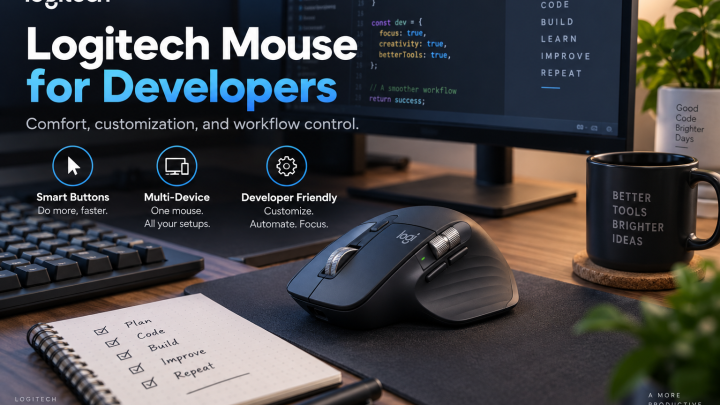
Programmable buttons are another valuable feature. Extra buttons can be assigned to common developer actions such as back, forward, copy, paste, switching desktops, opening applications, or triggering custom shortcuts. The benefit depends on software support and your willingness to customize the device, but well-positioned buttons can reduce repetitive keyboard movements.
Connectivity is another major decision factor. Many modern productivity mice support Bluetooth, 2.4GHz wireless, USB receivers, or wired operation. Multi-device switching is particularly useful for developers who work across a desktop, laptop, tablet, or multiple operating systems.
For example, a programmer may use a Windows desktop for development, a MacBook for client work, and a Linux laptop for server-related tasks. A mouse that can switch between several devices can simplify the desk setup.
Battery life matters for wireless models. A productivity mouse should not require constant charging, particularly if it is used every working day. Rechargeable batteries are convenient, while replaceable batteries may offer very long operating periods. Neither approach is automatically better; it depends on your preferences.
Sensor accuracy is important, although developers usually do not need extremely high gaming-focused DPI settings. What matters more is consistent tracking across typical desk surfaces and monitors.
High-resolution and multi-monitor setups can benefit from adjustable pointer sensitivity because the cursor must travel across a larger desktop area. Being able to tune DPI or pointer speed can make movement more efficient.
Compatibility is another critical issue. Before purchasing, verify support for your operating system. Some advanced functions require manufacturer software, and those applications may not provide identical functionality on Windows, macOS, and Linux.
Quick Comparison
| Mouse | Current Price* | Weight | Connectivity | Programmable Controls | Battery Life | OS Support | Warranty | Ergonomic Style |
|---|---|---|---|---|---|---|---|---|
| Logitech MX Master 3S Logitech | $79.99 sale | 141 g | Bluetooth + Logi Bolt | 7 main buttons plus gesture/side-wheel controls; Options+ | Up to 70 days | Windows, macOS; basic functions on Linux/ChromeOS/iPadOS | 1 year consumer | Sculpted right-handed productivity |
| Logitech M720 Triathlon Logitech | $34.99 sale | 135 g | Bluetooth + 2.4GHz Unifying receiver | 8 total controls; side/thumb controls customizable | Up to 24 months, 1×AA | Windows, macOS, Linux, ChromeOS, Android, iPadOS | 2 years | Full-size contoured right-handed |
| Logitech Lift Logitech | $69.99 sale | 125 g | Bluetooth + Logi Bolt | 6 buttons; Options+ customization | Up to 24 months, 1×AA | Windows, macOS, Linux, ChromeOS, Android, iPadOS | 2 years | 57° vertical ergonomic, small/medium hands |
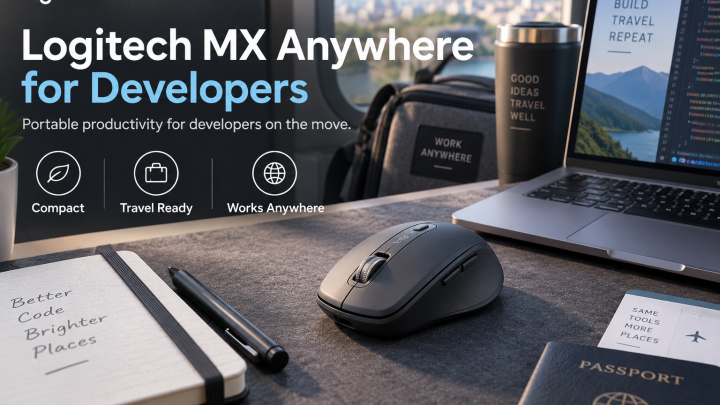
| Logitech MX Anywhere 3S Logitech | $89.99 | 95 g | Bluetooth + optional Logi Bolt | 6 buttons; Options+ customization | Up to 70 days | Windows, macOS, Linux, ChromeOS, Android, iPadOS | Varies by SKU/region; verify before publishing | Compact/travel productivity |
*Direct manufacturer pricing where available.
Best Overall: Logitech MX Master 3S
Best for: Developers who want a balanced productivity mouse for coding, browsing documentation, large monitors, spreadsheets, and multi-device workflows.
Why we picked it: The MX Master 3S combines an 8,000-DPI Darkfield sensor, tracking on glass, Logitech’s MagSpeed electromagnetic wheel, horizontal thumb scrolling, customizable controls, multi-computer Flow support, and up to 70 days of battery life. Logitech says the MagSpeed wheel can scroll up to 1,000 lines per second, which is particularly relevant when navigating large source files, logs, documentation, and long webpages. Logitech
The productivity controls are the bigger reason to choose it over a gaming-focused mouse. Logi Options+ allows button remapping, tracking-speed adjustments, app-specific configurations, and Smart Actions on Windows and macOS. That gives programmers useful options for assigning browser navigation, desktop switching, IDE actions, screenshots, or other repetitive commands. Logitech
Pros
- ✓ 8,000-DPI sensor with tracking on suitable glass surfaces
- ✓ MagSpeed electromagnetic scroll wheel
- ✓ Dedicated horizontal thumb wheel
- ✓ Customizable buttons and app-specific actions
- ✓ Logitech Flow for multi-computer workflows
- ✓ Bluetooth and Logi Bolt support
- ✓ Up to 70 days battery life
- ✓ Quick charging: roughly a full day’s use from a few minutes of charging
- ✓ Quiet Clicks produce substantially less click noise than the previous MX Master 3 according to Logitech. Logitech
Cons
- ✗ At 141 g, it is considerably heavier than compact and lightweight mice. Logitech
- ✗ Its sculpted shape is primarily intended for right-handed use.
- ✗ Large dimensions may not suit users who prefer fingertip-style control or a small travel mouse.
- ✗ Logi Options+ customization is primarily available on Windows and macOS; other platforms get more limited functionality. Logitech
- ✗ Normal MSRP is higher than simpler productivity mice; the current $79.99 figure is promotional pricing. Logitech
Important Specs
| Specification | Logitech MX Master 3S |
|---|---|
| Sensor | Darkfield high precision |
| Maximum DPI | 8,000 DPI |
| Weight | 141 g |
| Connectivity | Bluetooth LE + Logi Bolt |
| Device switching | Up to 3 computers |
| Main scroll wheel | MagSpeed electromagnetic |
| Horizontal scrolling | Dedicated thumb wheel |
| Battery | Rechargeable 500 mAh Li-Po |
| Battery life | Up to 70 days |
| Charging | USB-C |
| Software | Logi Options+ |
| Hand orientation | Right-handed |
| Consumer warranty | 1-year limited hardware warranty |
Logitech’s consumer support documentation lists a one-year warranty for the MX Master 3S; business versions carry different warranty terms, so don’t mix those SKUs in the article. Logitech Support
Verdict:
For a developer spending most of the day moving between VS Code/JetBrains, terminals, browser documentation, Jira, Slack, spreadsheets, and multiple computers, this is the strongest all-around option in this group.
Best Value: Logitech M720 Triathlon
Best for: Programmers and remote workers who want multi-device support, extra buttons, fast scrolling, and excellent battery life without spending MX Master money.
Why we picked it: At the current promotional price of about $34.99, the M720 offers an unusually useful productivity feature set: Bluetooth, a 2.4GHz receiver, pairing with up to three devices, hyper-fast scrolling, horizontal tilt scrolling, extra thumb controls, Logitech Flow support, and a rated 24-month battery life from one AA battery. Logitech
For coding, the scroll wheel is especially useful. It can switch between fast scrolling for moving rapidly through long documents and more controlled line-by-line scrolling. The wheel also supports horizontal tilt, which can help with wide spreadsheets, timelines, or source-code views. Logitech
Pros
- ✓ Excellent price-to-feature ratio
- ✓ Pairs with up to three devices
- ✓ Bluetooth + included Unifying receiver
- ✓ Hyper-fast and precision scrolling
- ✓ Horizontal tilt-wheel scrolling
- ✓ Two side buttons plus a hidden thumb control
- ✓ Logi Options+ customization on Windows/macOS
- ✓ Logitech Flow support
- ✓ Up to 24 months battery life
- ✓ Broad OS compatibility. Logitech
Cons
- ✗ 135 g is still fairly heavy compared with modern lightweight mice.
- ✗ The roughly 1,000-DPI sensor is far less adjustable than the MX Master 3S’s 8K sensor.
- ✗ Uses an AA battery instead of USB-C rechargeable power.
- ✗ Older Unifying receiver technology rather than Logitech’s newer Bolt receiver.
- ✗ Primarily designed for right-handed use. Logitech Support
Important Specs
| Specification | Logitech M720 |
|---|---|
| Weight | 135 g including AA battery |
| Sensor | High Precision Optical Tracking |
| DPI | Approx. 1,000 |
| Connectivity | Bluetooth LE + 2.4GHz Unifying |
| Device switching | 3 devices |
| Controls | 8 standard/special controls |
| Scroll | Hyper-fast + precision + horizontal tilt |
| Battery | 1× replaceable AA |
| Battery life | Up to 24 months |
| OS | Windows, macOS, Linux, ChromeOS, Android, iPadOS |
| Warranty | 2-year limited hardware |
Verdict:
This is the one I would label Best Value. For roughly half the normal cost of an MX Master-class mouse, developers still get the features that matter most for everyday productivity.
Best Alternative: Logitech Lift Vertical
Best for: Developers who want a vertical mouse and prefer a more upright hand position during long coding sessions.
Why we picked it: The Lift uses a 57-degree vertical design intended to position the hand and forearm differently from a conventional flat mouse. Logitech specifically targets it toward small-to-medium hands and also offers a left-handed version, something many productivity mice do not provide. Logitech
It retains productivity features rather than becoming a purely ergonomic specialty device: Bluetooth, Logi Bolt, three-device connectivity, SmartWheel scrolling, customizable controls, a 4,000-DPI sensor, and an estimated 24 months of battery life. Logitech Support
Pros
- ✓ 57° vertical ergonomic design
- ✓ Right- and left-handed versions available
- ✓ Designed particularly for small-to-medium hands
- ✓ Bluetooth + Logi Bolt
- ✓ Connects to multiple devices
- ✓ 4,000-DPI adjustable tracking
- ✓ SmartWheel
- ✓ Logi Options+ customization
- ✓ Up to 24 months battery life
- ✓ Quiet main clicks
- ✓ 2-year warranty. Logitech
Cons
- ✗ Vertical mice require an adjustment period if you’re accustomed to conventional mice.
- ✗ At 125 g, it isn’t a lightweight mouse.
- ✗ Logitech explicitly positions the Lift for small-to-medium hands, so users with very large hands may prefer a larger ergonomic design.
- ✗ Uses one AA battery rather than USB-C charging.
- ✗ Fewer productivity controls than the MX Master 3S. Logitech Support
Important Specs
| Specification | Logitech Lift |
|---|---|
| Ergonomic angle | 57° vertical |
| Weight | 125 g |
| Sensor | Logitech Advanced Optical Tracking |
| DPI | 400–4,000 DPI |
| Connectivity | Bluetooth LE + Logi Bolt |
| Buttons | 6 |
| Scroll wheel | SmartWheel |
| Battery | 1× replaceable AA |
| Battery life | Up to 24 months |
| Wireless range | Up to 10 m |
| Hand options | Right + left-handed models |
| Warranty | 2 years |
Detailed Comparison
Compare ergonomics, scroll wheel performance, button placement, sensor tracking, multi-device support, software, battery life, warranty, and value.
What Should Developers Look For?
Focus on ergonomics, scrolling, programmable buttons, weight, wireless reliability, multi-device switching, operating-system support, and long-session comfort.
How We Selected and Evaluated These Products
Document your actual testing method, research sources, measurements, pricing checks, software tests, and limitations.
FAQ
- What mouse is best for programming?
- Is an ergonomic mouse better for developers?
- Are gaming mice good for programming?
- Is a vertical mouse better for wrist comfort?
- How many programmable buttons do programmers need?
Final Recommendation
Recommend products by user type: overall productivity, budget, portability, ergonomics, and multi-device workflows.